
Before you start
- A Groovin account with LinkedIn connected — sign up at groovin.ai and complete the LinkedIn connection flow via the browser extension.
- Claude (web or Desktop), or any other MCP-compatible AI tool (ChatGPT, Cursor, VS Code…).
Claude (Desktop, web)
1
Open Connectors settings
Go to Settings → Connectors or Customize → Connectors.On Claude web: claude.ai/settings/integrations.
2
Add Groovin as a custom connector
Click Add Connector, enter a name (e.g. 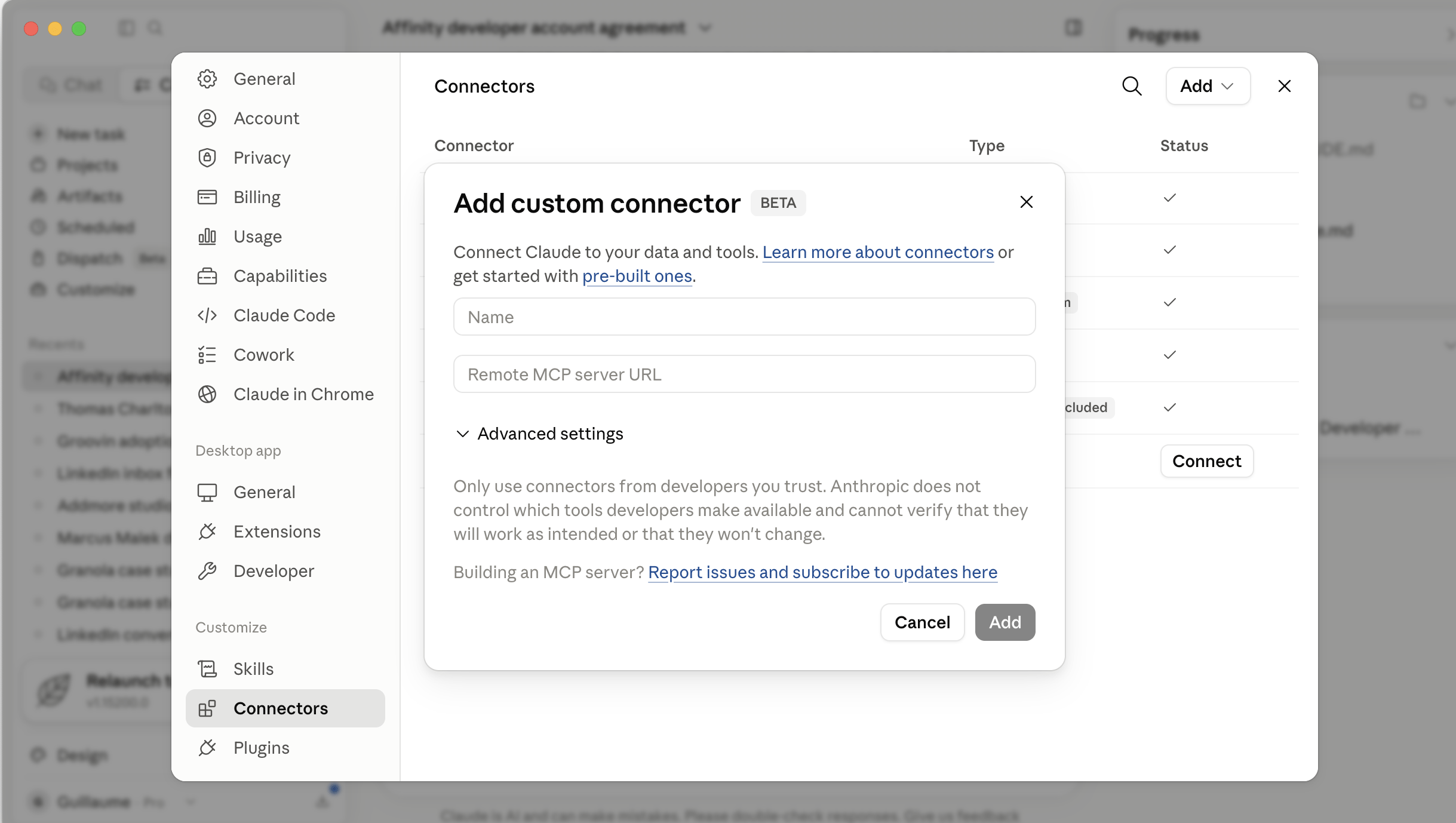
Groovin), and paste the MCP server URL:3
Sign in to Groovin
Complete the sign-in flow to connect your Groovin account.
Sign-in not working? Add an OAuth Client ID
Sign-in not working? Add an OAuth Client ID
If the connector says “Couldn’t register with Groovin’s sign-in service”, open the connector’s Advanced settings, paste this OAuth Client ID, leave the Client Secret blank, and reconnect:
4
Verify it works
Open a new chat and ask:
“List my available Groovin tools.”You should see the Groovin tools listed. See the Tools reference for what each one does.
Claude Code
1
Add the Groovin MCP server
Run this command in your terminal:
2
Authenticate
Inside Claude Code, run
/mcp and complete the sign-in flow for Groovin.3
Verify it works
Ask Claude Code:
“List my available Groovin tools.”You should see the Groovin tools listed.
Other MCP clients
Addhttps://api.groovin.ai/functions/v1/mcp-server as a remote MCP server and complete the OAuth authentication when prompted.
Alternatively, create a Groovin API key and send it as a Bearer token on every request to the same MCP server URL.
Running into connection issues? See the Troubleshooting page.